Upload the clip that already has the right foundation
Start with a short video whose subject, action, framing, and timing give the edit a clear reference.
Edit an uploaded video clip with a prompt when you need to change a visible detail without rebuilding the whole shot from scratch.
Start from the clip that already has the timing, performance, and camera movement you need. AI Video Editor helps you describe what should be added, removed, replaced, or restyled while calling out the details that must remain consistent.
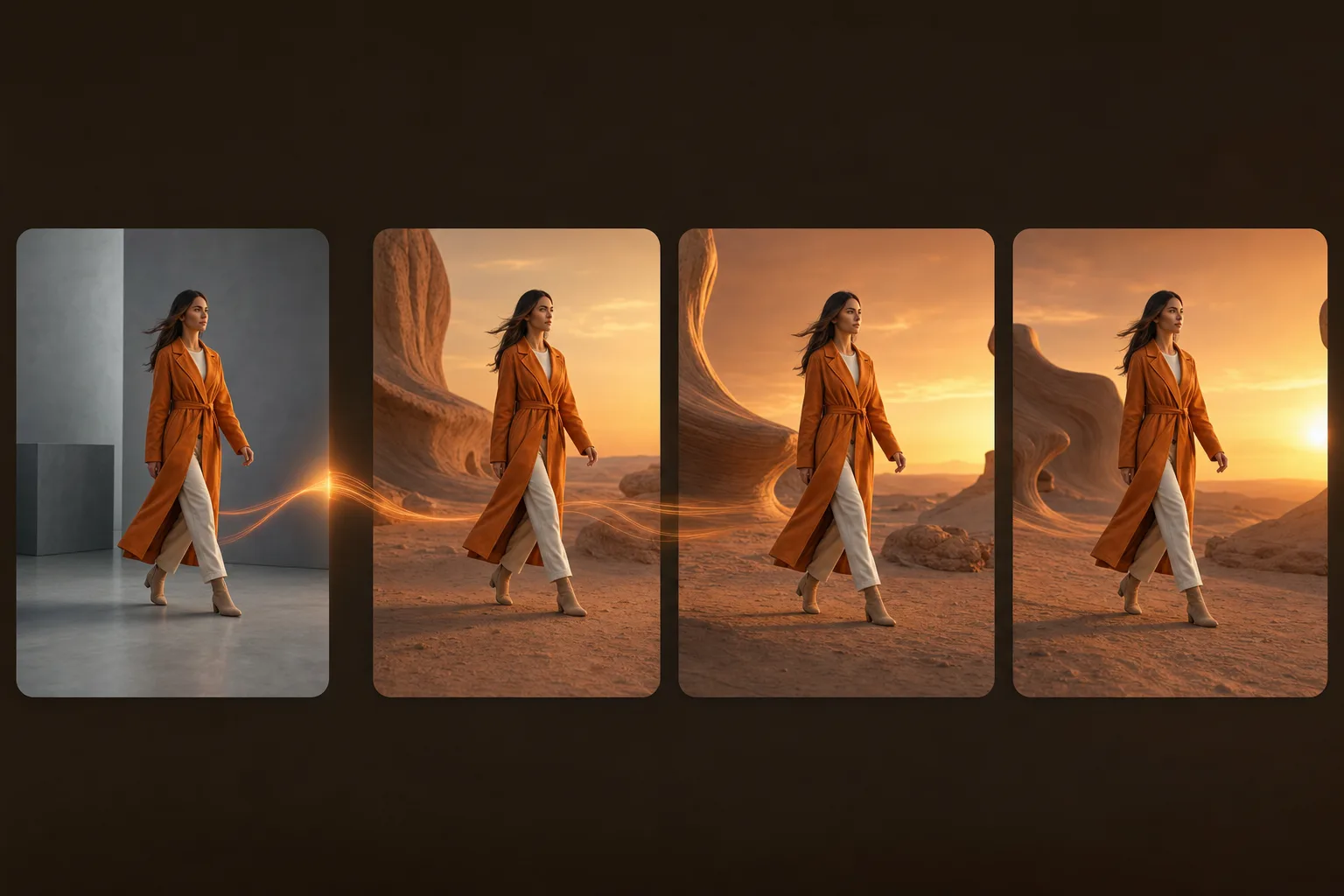
Use the source video to anchor the timing and motion, then write one direct request that distinguishes the intended change from the parts of the shot that must stay.
Start with a short video whose subject, action, framing, and timing give the edit a clear reference.
Ask to add, remove, replace, or restyle a specific element, then name the person, product, action, and background details that must remain.
Check that the change stays believable as the clip progresses, then revise the prompt with one more precise instruction if needed.
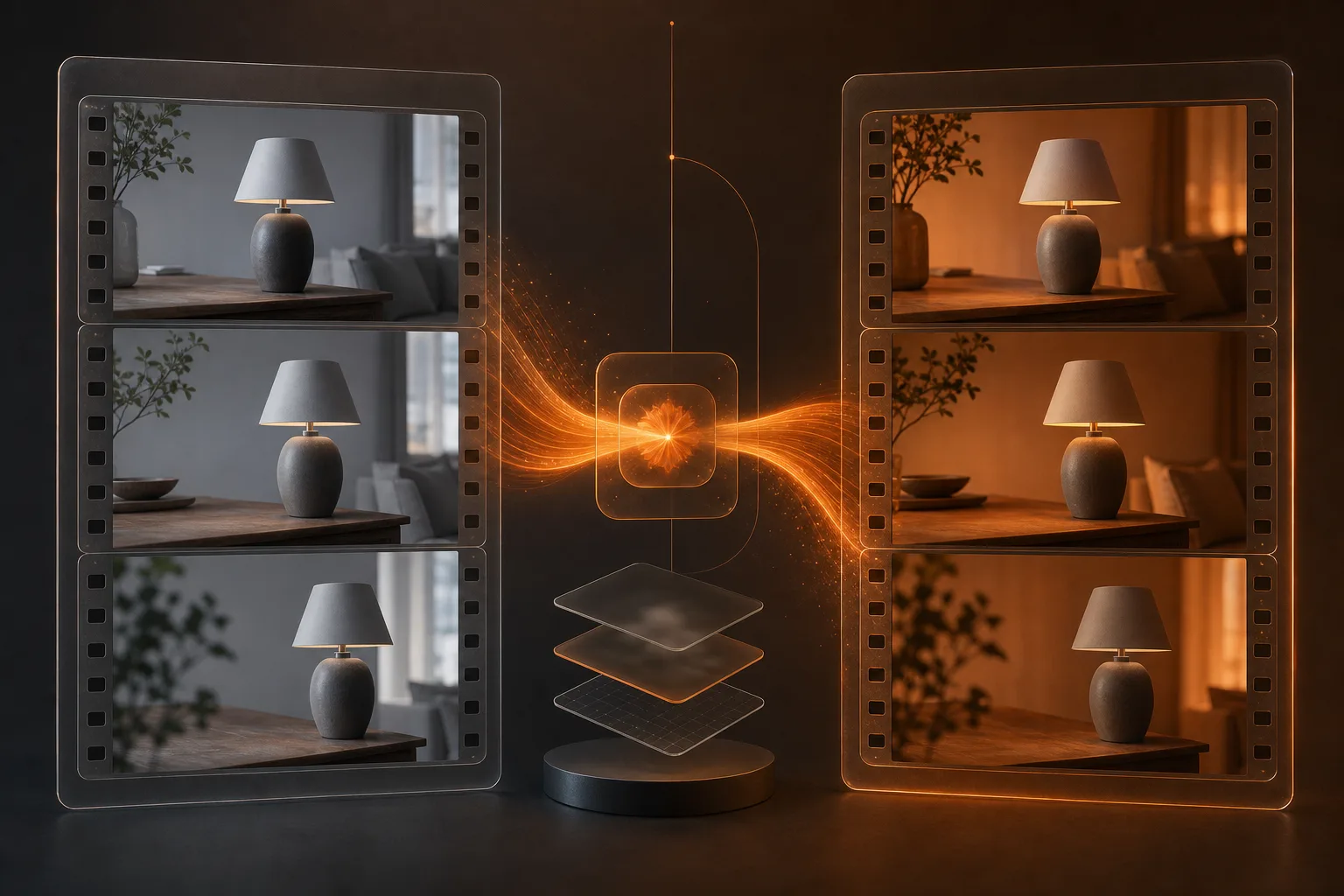
The uploaded clip carries the original performance, timing, and camera movement into the request, while your prompt defines the change and the visual details that must stay coherent.
Keep the clip's existing action, timing, and framing as the foundation for the requested edit.
Add, remove, replace, or restyle a visible element with a direct written instruction.
Name the subject, objects, and visual details that should remain consistent across the clip.
Check the result as motion, so the edit continues to make sense as the camera and subject move.
AI Video Editor is useful when the clip already has the shot, movement, and timing you need, but one visual part needs a new direction.
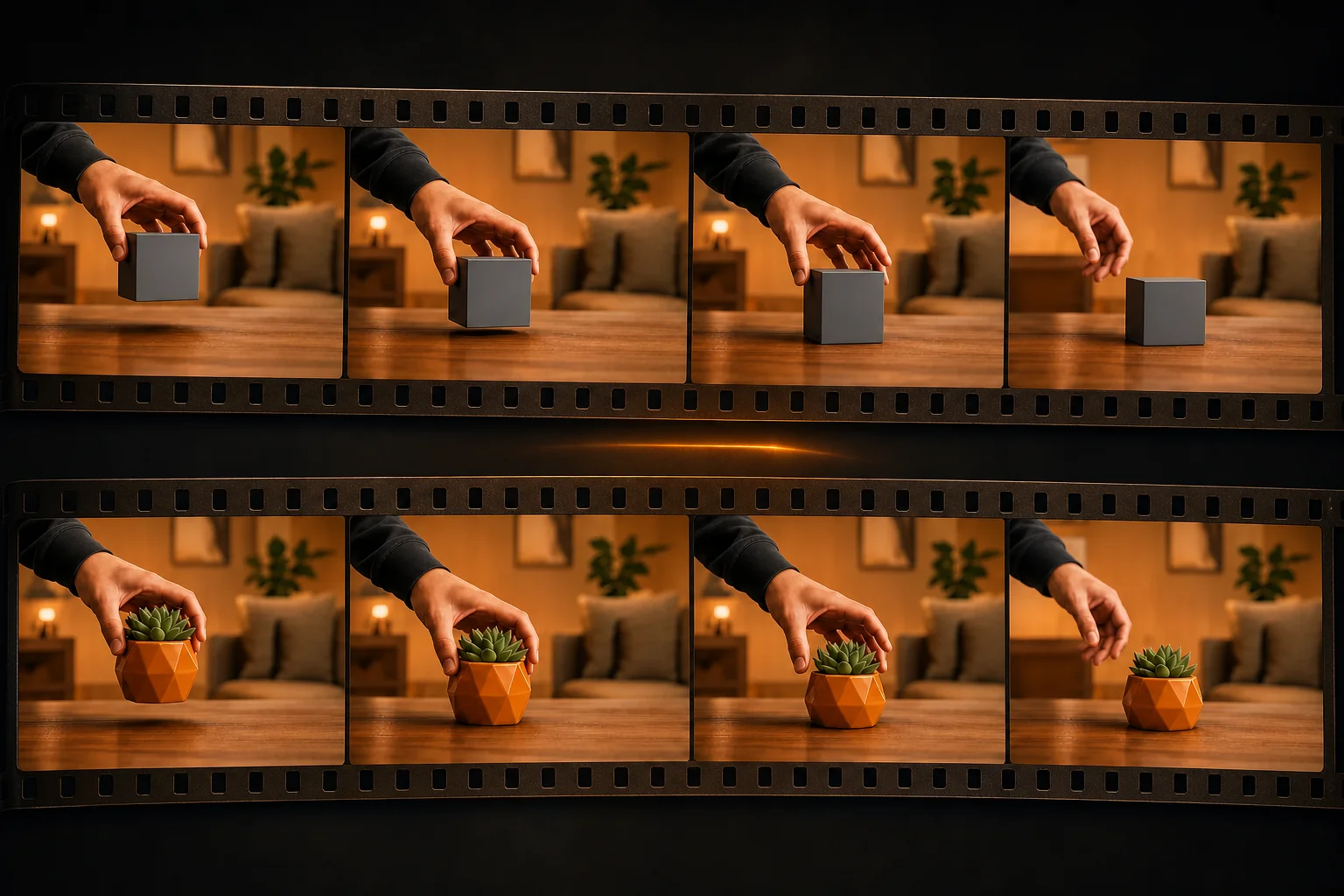
Change a product label, remove a distracting object, or replace a visible prop while keeping the subject action and rest of the scene in view.
Ask for a different color treatment, lighting feel, or visual style when the footage works but the finish needs to better match the intended direction.
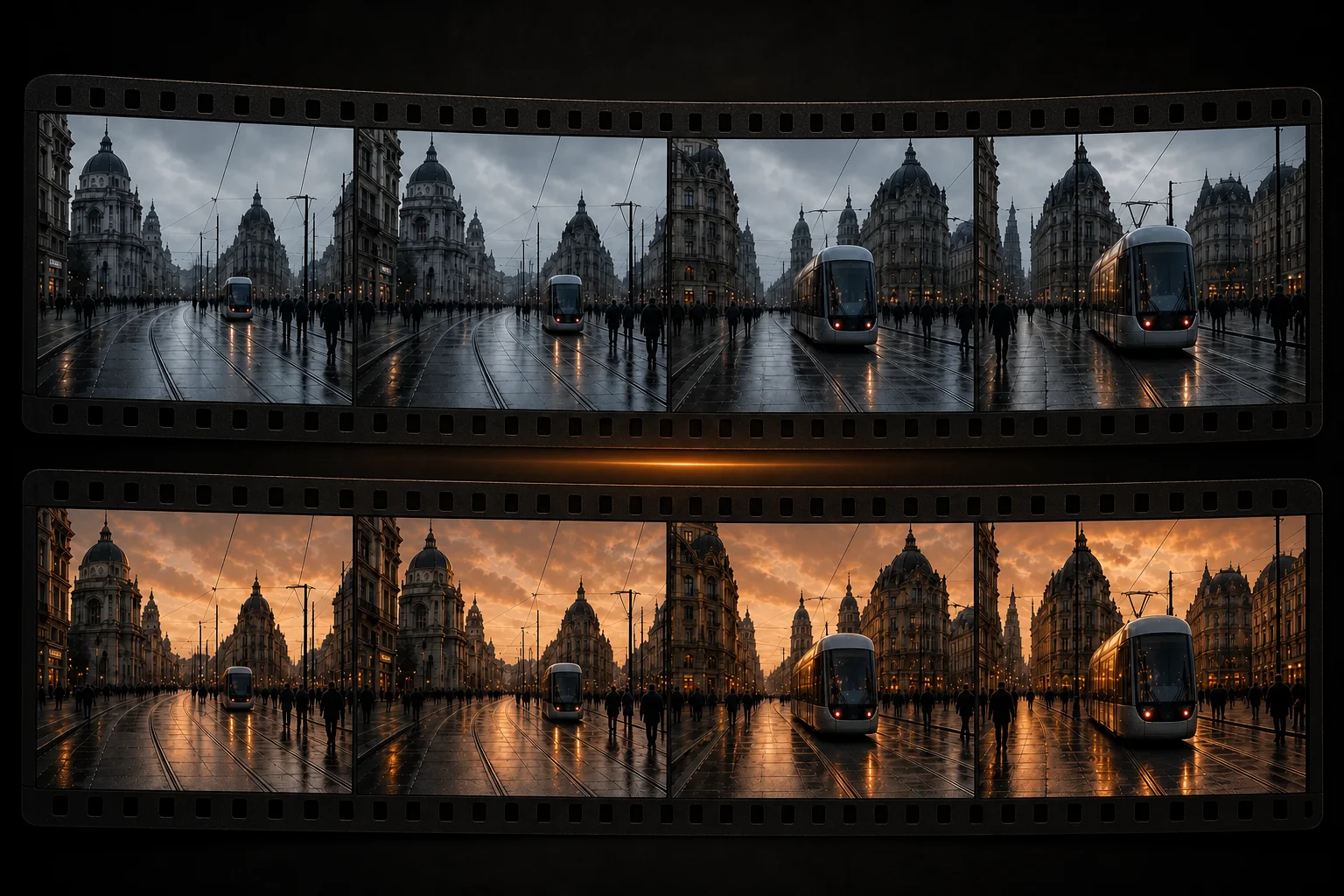
Make a focused visual adjustment to a short clip before publishing, such as changing a background detail or clarifying a product moment without reshooting the sequence.
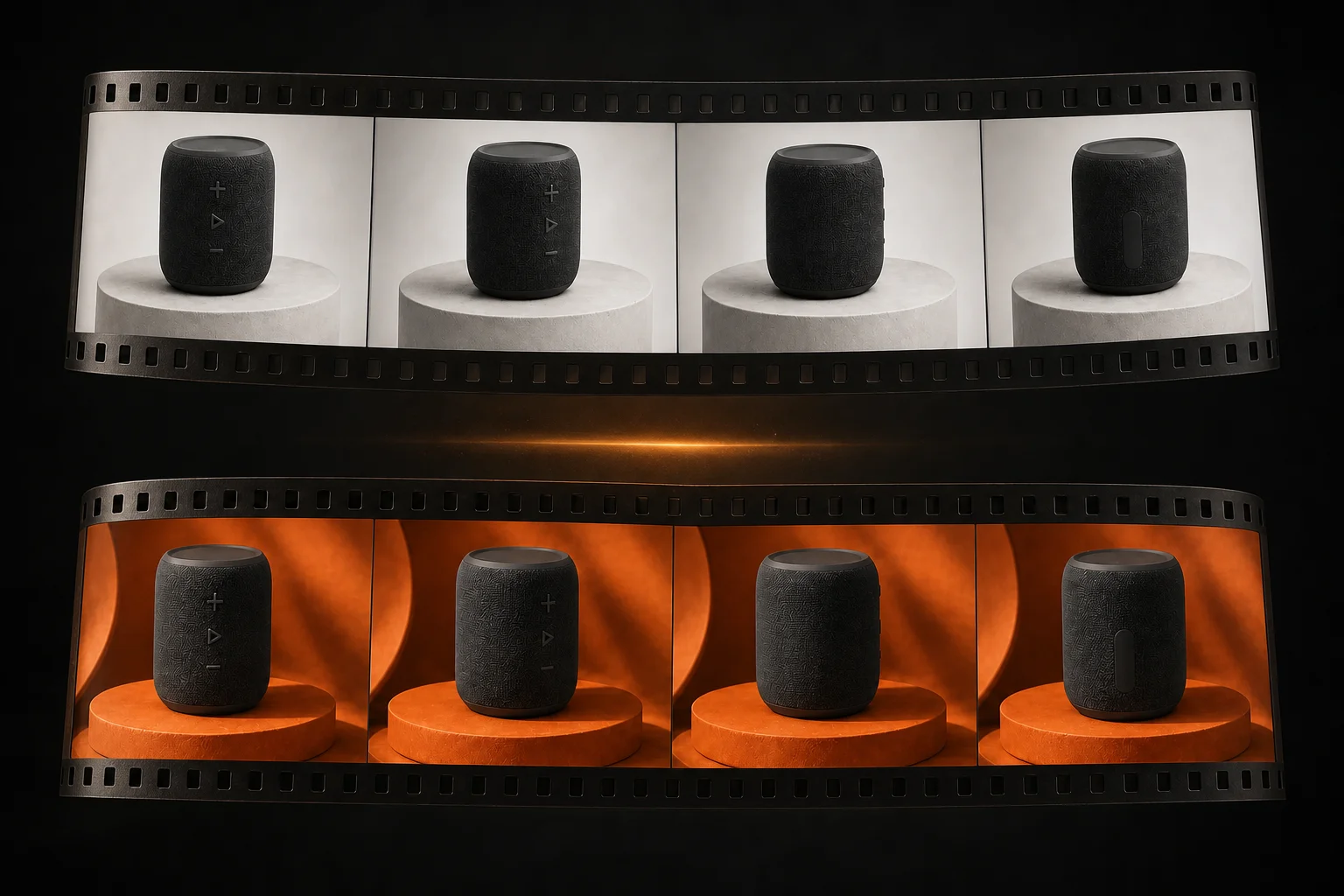
More than just watermark removal. Our AI-powered suite includes intelligent background removal, smart object manipulation, and precision editing tools. Powered by advanced deep learning and computer vision technology that understands context and preserves quality.
How creators make focused prompt-based changes to existing clips while protecting the subject and shot continuity.
“I use AI Video Editor when one distracting object needs to disappear from an otherwise usable clip. Naming the object and the details to preserve keeps the request focused.”
“When a shot needs a different mood, I ask for a lighting and color change while keeping the person, clothing, and camera movement unchanged. That gives me a clear restyle to review.”
“I create a few focused edit variations from the same source clip and review them with the team before the final cut. It is more useful than changing several parts of the shot at once.”
A precise edit request tells the model what to change, what to preserve, and how the result should feel as the clip continues.
Start with the item or area to add, remove, replace, or restyle so the requested change has a clear focus.
Name the person, product, action, framing, or background elements that should stay consistent while the edit happens.
Include the camera feel, lighting, and how the new detail should behave through the clip, not only in a single frame.
It lets you upload a video clip and describe a focused visual edit in a prompt.
Yes. Upload a supported clip, write the requested change, and include the details that must remain.
You can request to add, remove, replace, or restyle visible elements, subject to the selected model and its available controls.
Identify the person, product, action, and other details that must remain before you describe the edit.
Yes. Describe the desired lighting, color treatment, or visual finish while stating which shot details should remain consistent.
Camera movement affects how an edit needs to hold together across frames, so naming the camera feel helps make the request more specific.
Available clip length limits depend on the selected model and settings. The editor shows the options that apply to the current setup.
Reference image inputs are available only when the selected model and mode support them.
Narrow the next request to one visible change, specify the details that must stay, and describe how the edit should look as the clip moves.