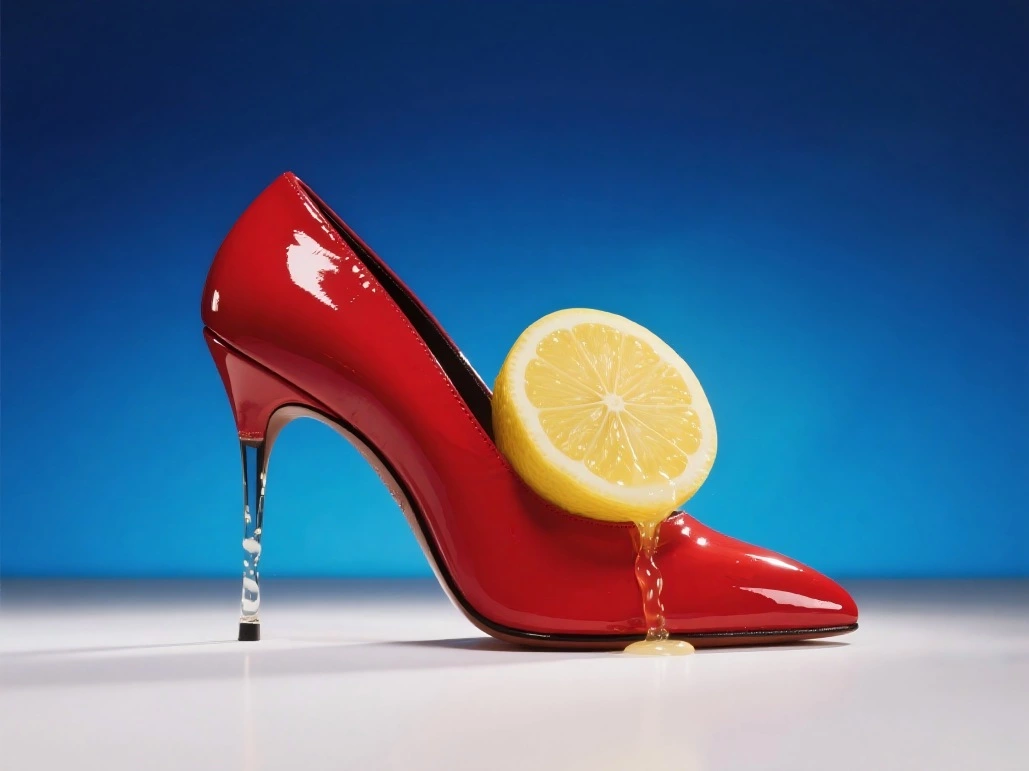
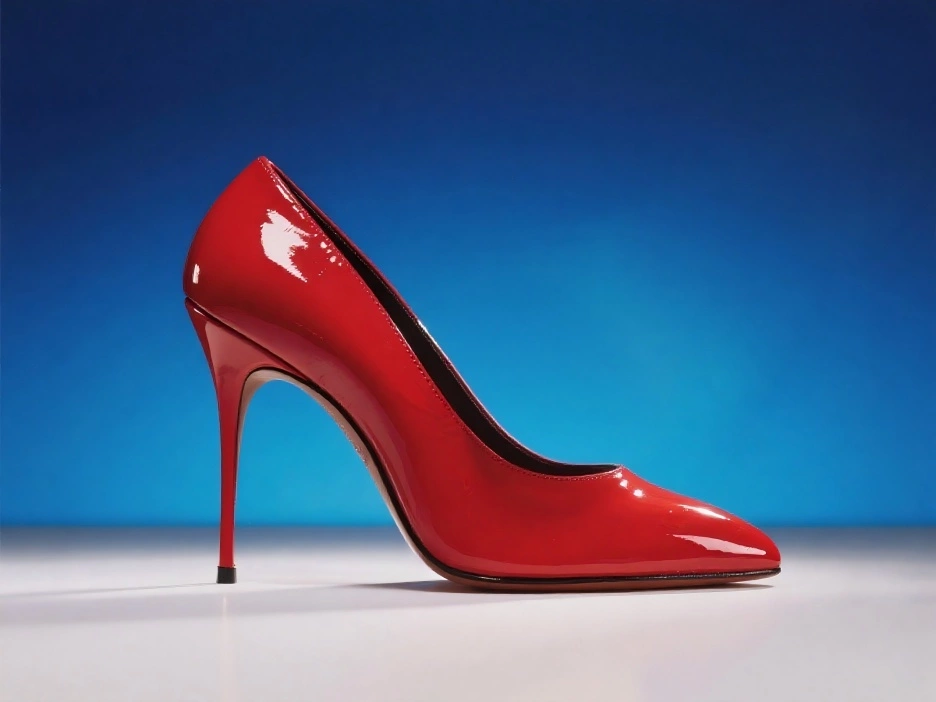
Start with the material you have
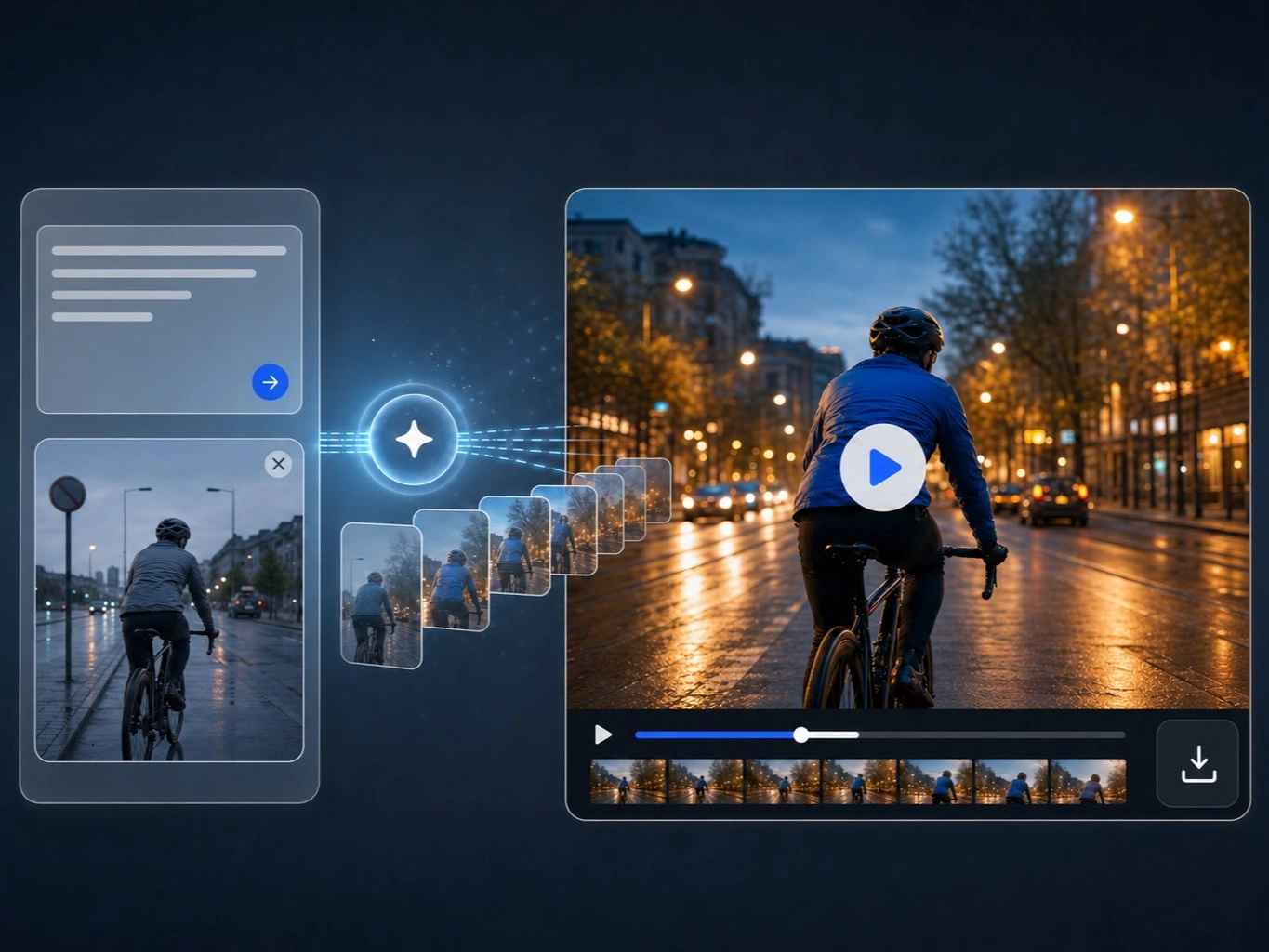
Choose Text to Video for a new idea described in words, or Image to Video when you want the video to begin from a specific subject, composition, or atmosphere.
Generate videos from text or images, or edit existing footage with AI. Customize motion, framing, and output in one place.
A product moment, a social concept, or a shot you want to test does not need a full production to become visible. Start from a written brief when the scene only exists in your head, or use an image when the first frame already carries the subject and mood you need.
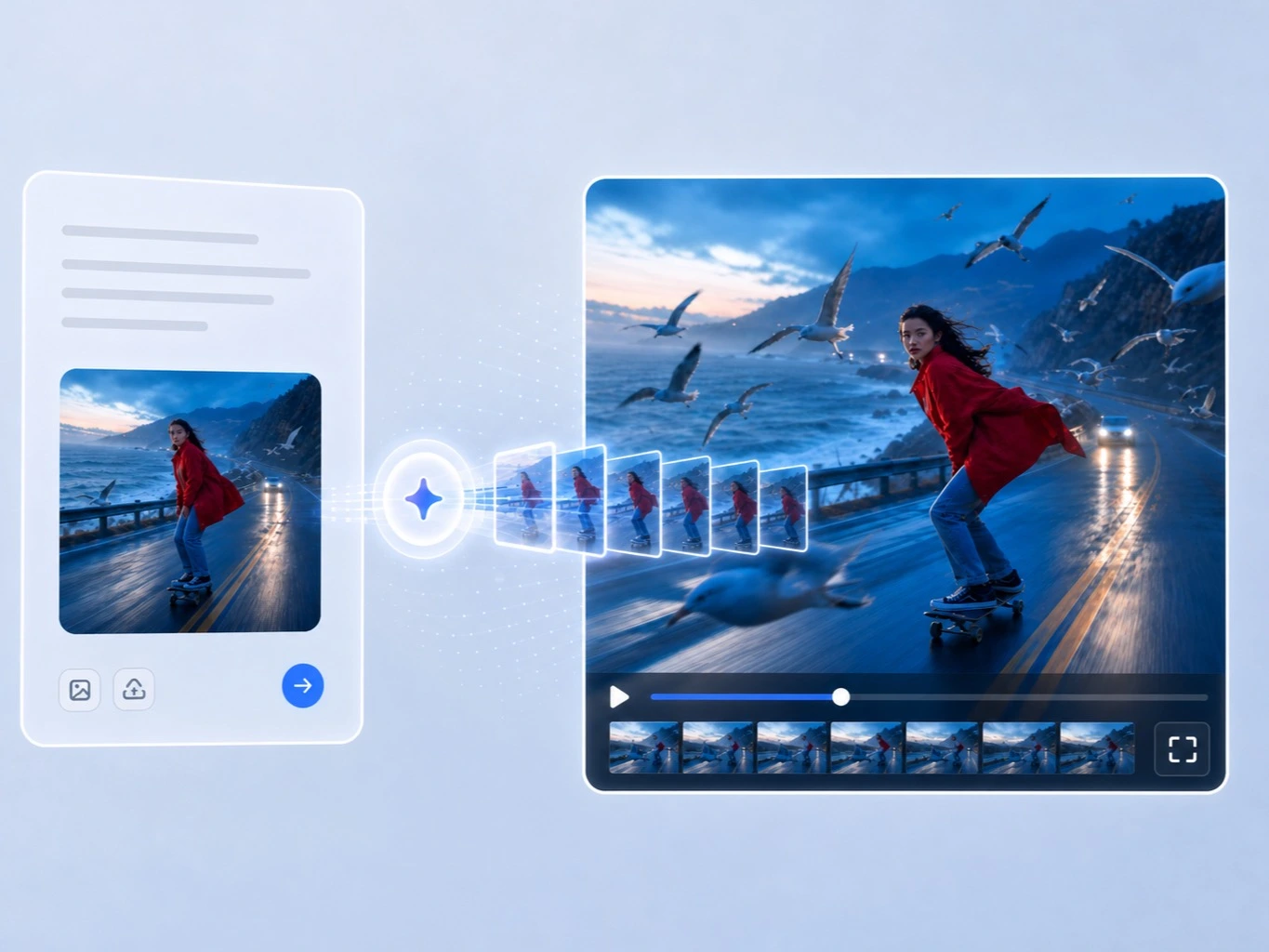
The workflow begins with the input you have, then gives you room to direct the scene and refine the first result.
Choose Text to Video for a new idea described in words, or Image to Video when you want the video to begin from a specific subject, composition, or atmosphere.
Name what should happen on screen, where it happens, and how the camera should feel. Image input works best when the prompt makes clear which details should remain and which elements should move.
Select the available duration, resolution, and aspect ratio, then review the result as a creative draft. Refine one part of the direction at a time for a more deliberate next generation.
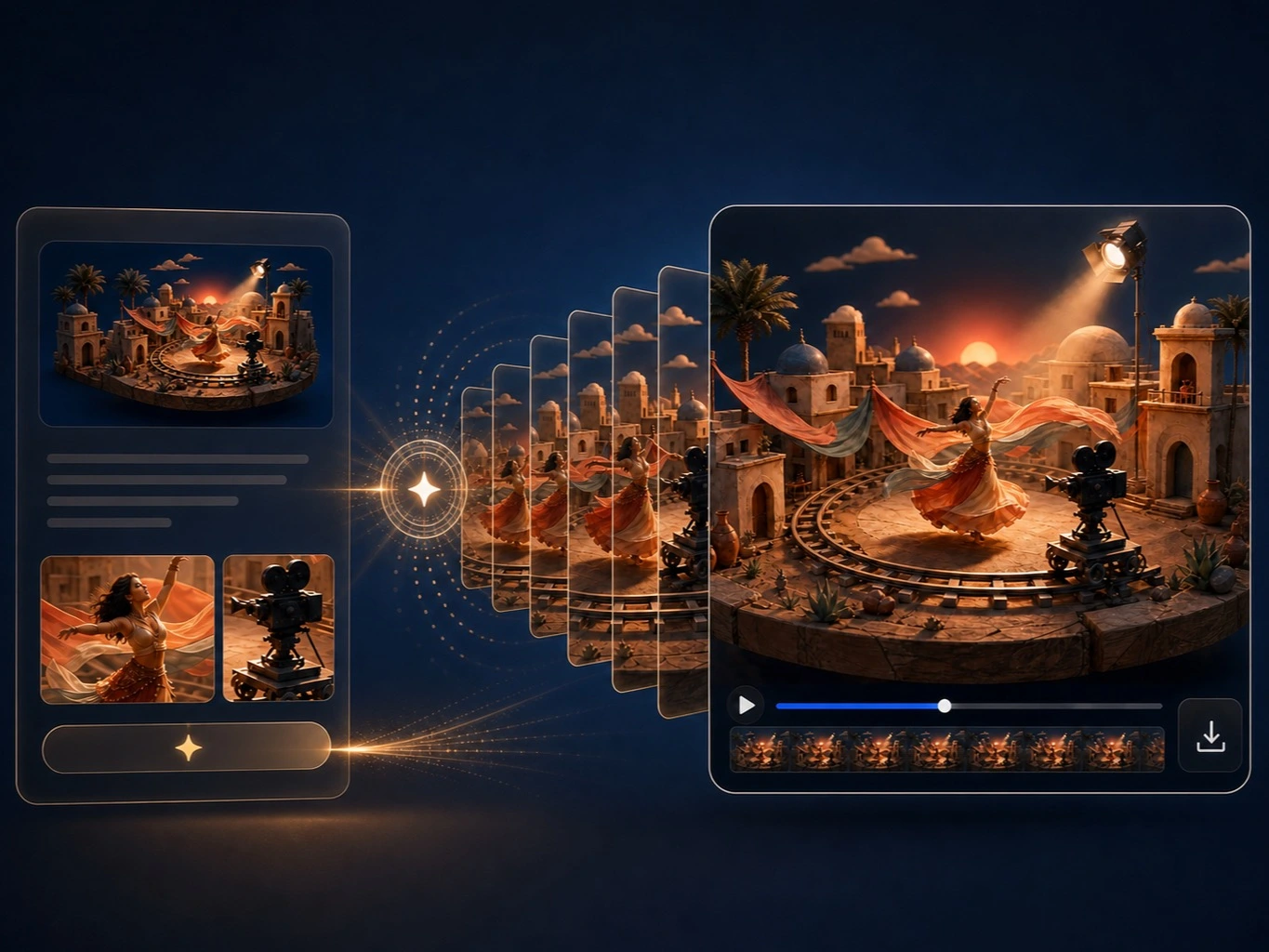
Choose the input that gives the model the clearest creative starting point, then use the available controls to make the result fit the idea and its intended format.
Describe the subject, action, setting, and camera feel in direct language so the video has a clear moment to create.
Use a source image or supported reference inputs when the character, composition, or visual mood should lead the result.
Select the available duration, resolution, and aspect ratio for the visual format you are exploring.
Review each first cut as a draft, then refine the prompt or visual direction without rebuilding the idea from scratch.
Use the generator to make a concept easier to see, turn an approved visual into motion, or explore a shot before committing time to a larger edit or shoot.
Use Text to Video when the scene does not exist yet. A short brief can become a product reveal, a social opening, or a story moment that helps the team decide what is worth making next.
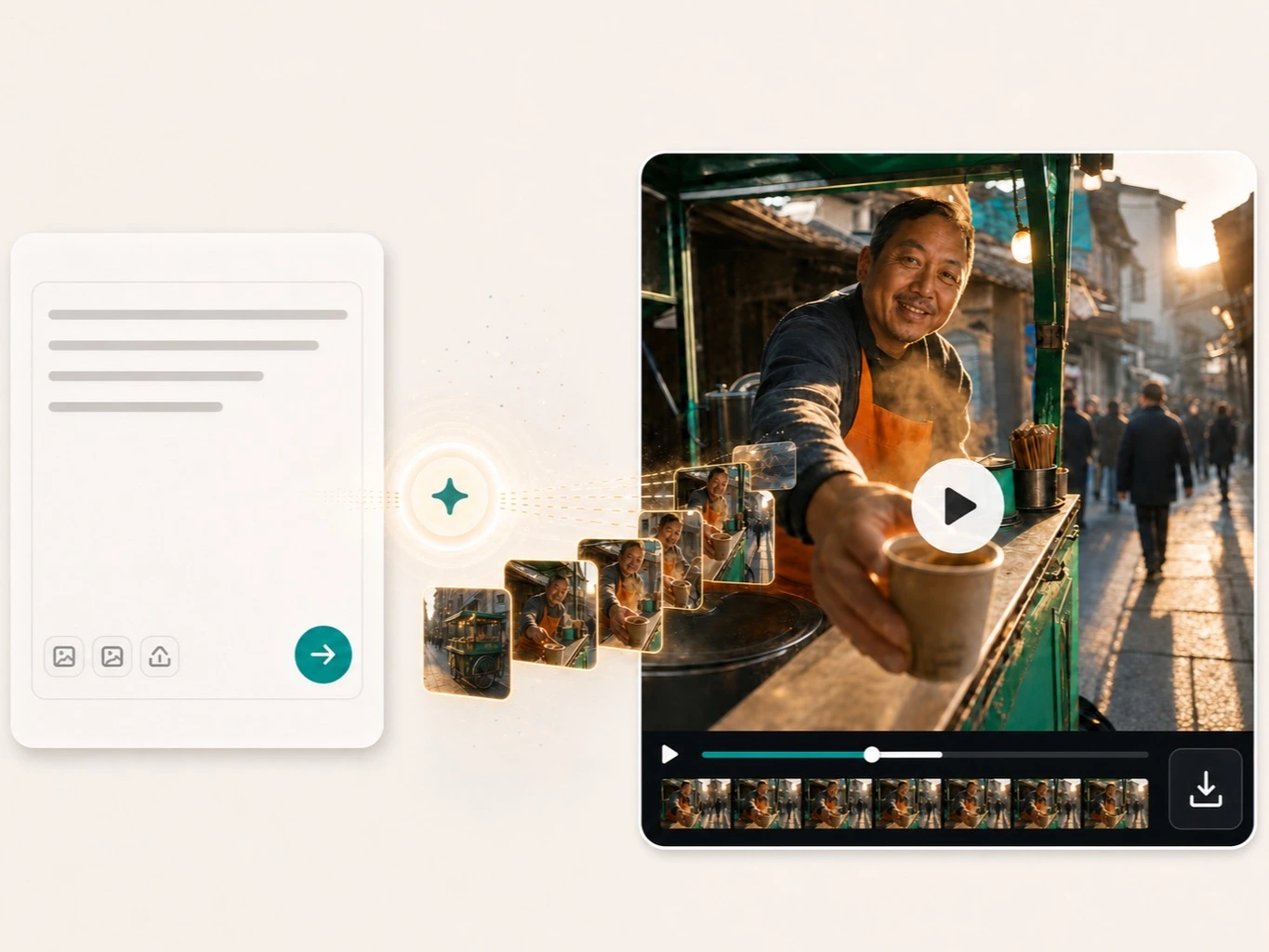
Use Image to Video when the first frame is doing important work. Start from a product photo, portrait, illustration, or reference image, then use the prompt to guide the movement without losing the original visual intent.
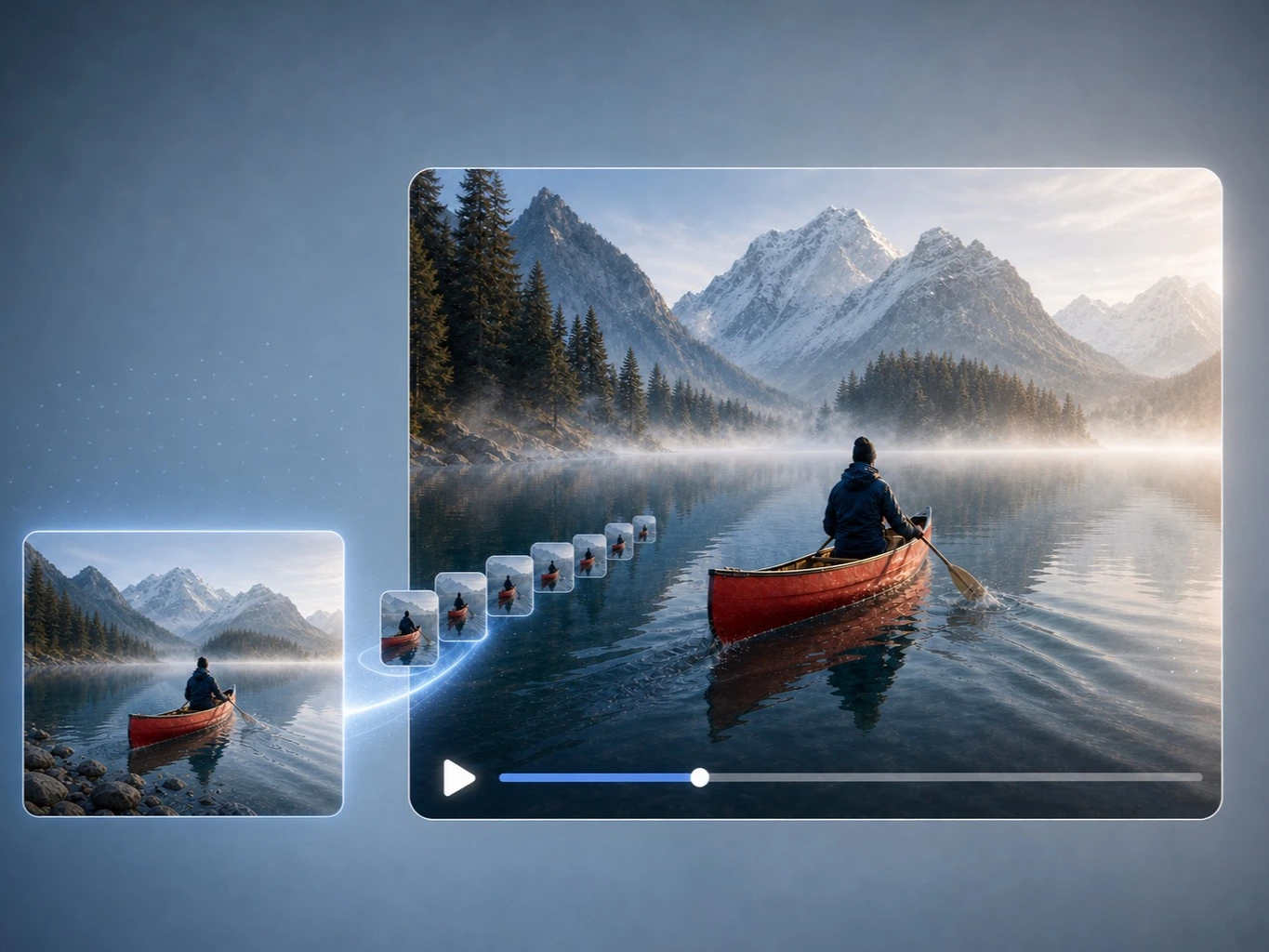
Treat the first generation as a visual brief for the next step in the workflow. Explore a camera move, pace, light, or setting while the idea is still inexpensive to change, then carry the clearest direction into an edit, treatment, or shoot.
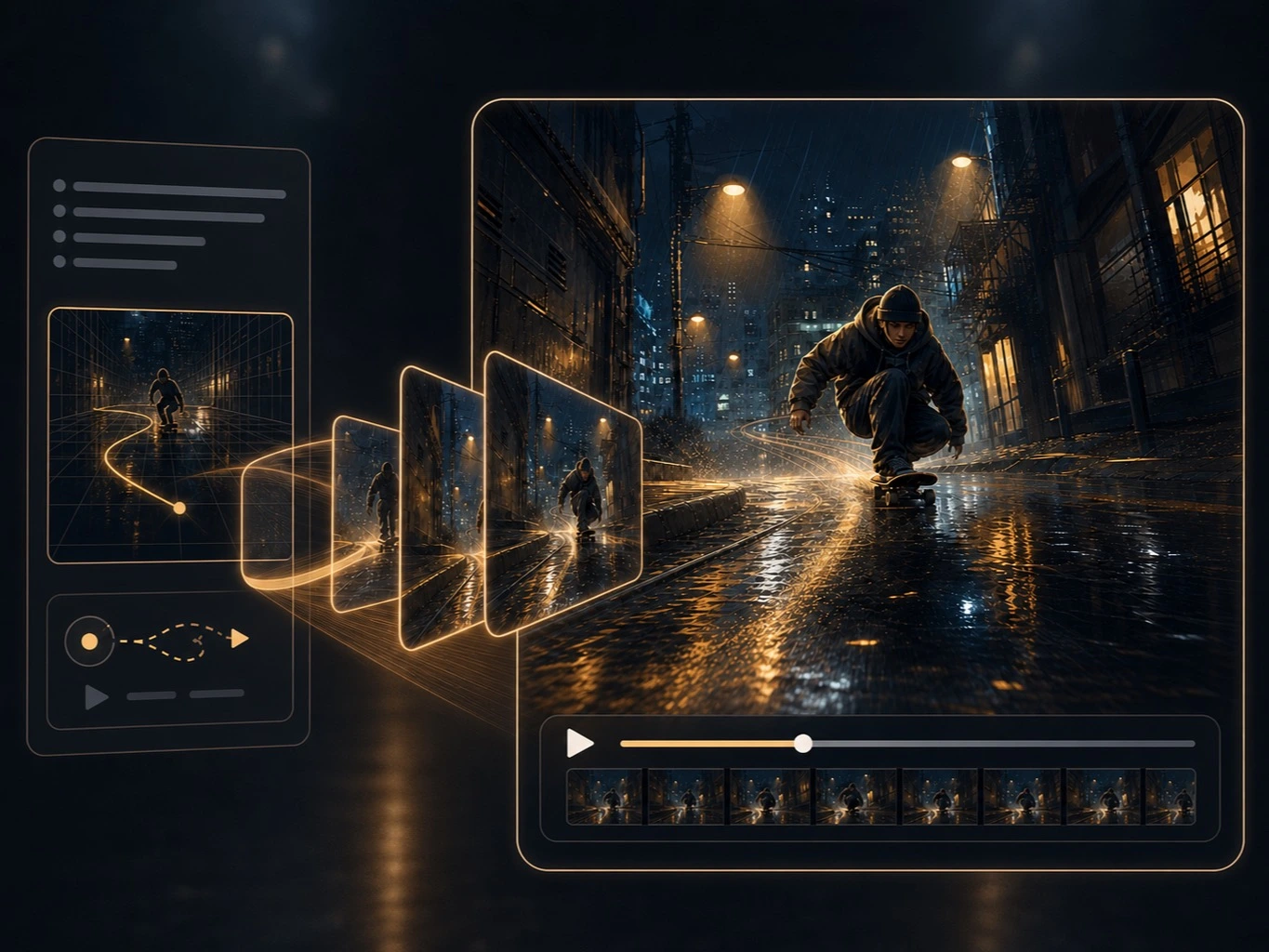
Before a brief becomes a deck of references, make a short sequence that shows the product, action, setting, and rhythm together. It gives collaborators something concrete to react to before the next step becomes a storyboard, a shoot, or an edit.
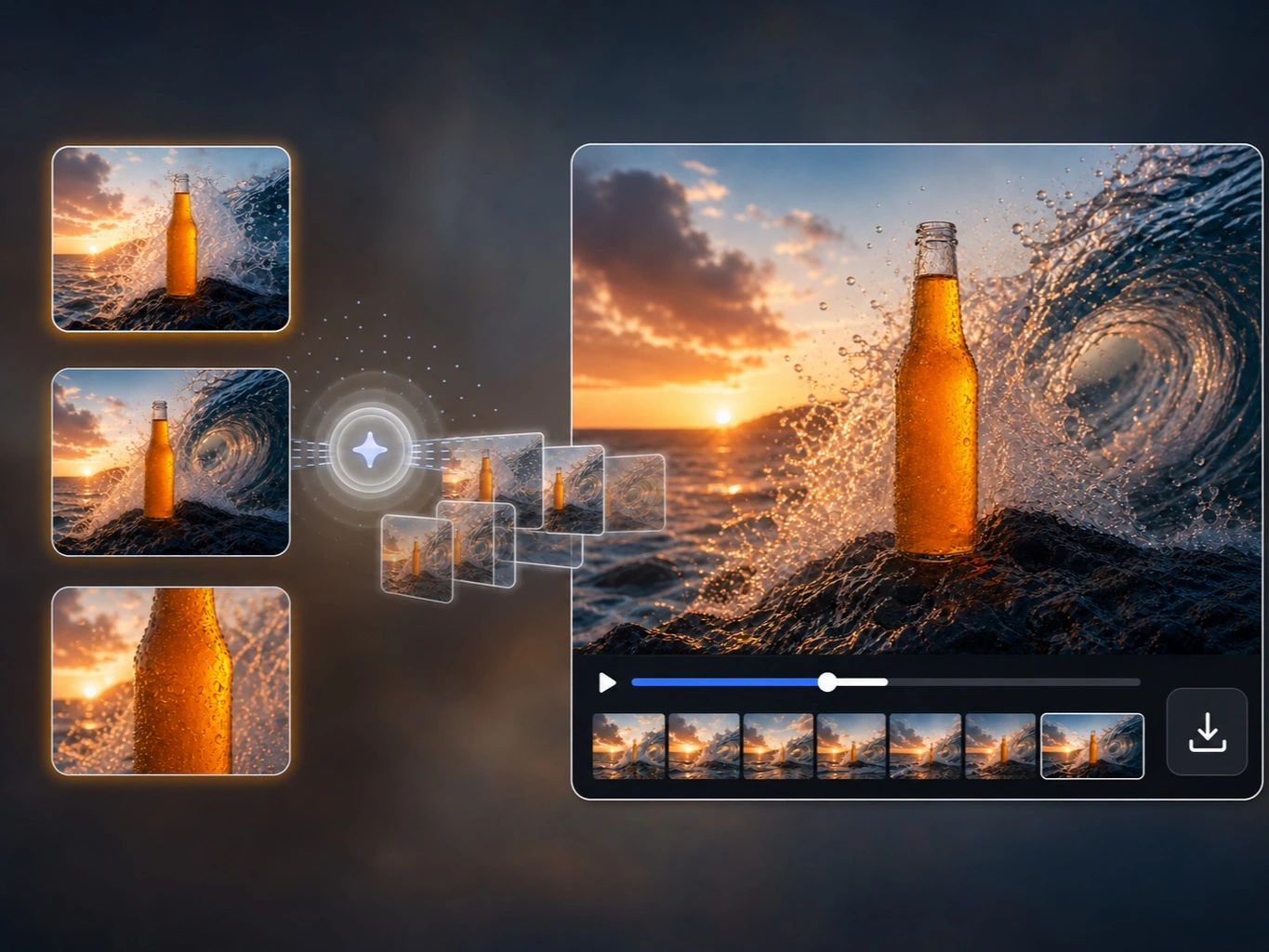
Upload an existing clip to AI Video Editor and describe what should change and what must stay. Add, remove, replace, or restyle visual elements while keeping the subject and motion aligned across frames.
More than just watermark removal. Our AI-powered suite includes intelligent background removal, smart object manipulation, and precision editing tools. Powered by advanced deep learning and computer vision technology that understands context and preserves quality.
How creators use the AI video generator to test motion, shape a visual direction, and share a first draft before production.
“I usually start with a rough hook and test it in Text to Video before I write the full storyboard. The AI video generator gives me a moving draft I can react to, especially when I need to compare two camera directions.”
“Image to Video is useful when a client has already approved a key visual. I can keep the product and composition recognizable, then try a slow push-in or small background movement before we plan the final edit.”
“I use the AI video generator for early social concepts, not as a one-click finished ad. Adjusting the prompt, duration, and visual references in one place makes each version easier to review with the team.”
Yes. Select Text to Video, write a prompt, choose the available settings, and generate.
Yes. Image input is available when the selected model and mode support it.
The tool accepts JPG, JPEG, PNG, and WebP image files.
Each model exposes its own available durations, image inputs, resolutions, and aspect-ratio controls.
Seedance 2.0 Fast requires a signed-in paid account with enough credits for the selected settings.
Available durations depend on the model and settings you select. The duration control shows the options that apply to your current setup.
Yes. Available aspect-ratio and resolution controls change with the selected model, so the tool only shows options that work together.
Start with the subject, the action, and the setting. Add the camera distance or movement when it matters, then refine one detail at a time after you review the first result.
Make the next prompt more specific about the moment that matters. If you have a first frame that already has the right subject or composition, use Image to Video to keep that visual direction in view.